Exchange Online External Email Tags
Last updated
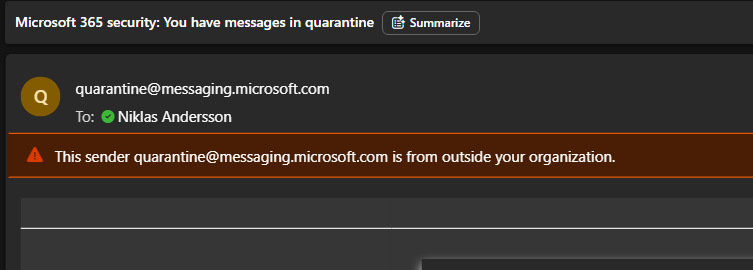
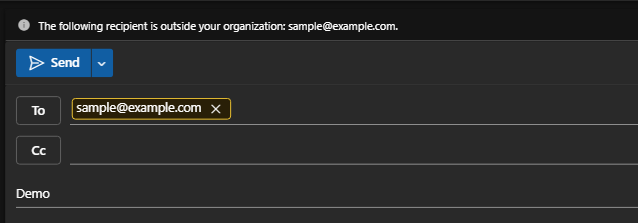
The External Email Tag in Microsoft 365 clearly marks emails from outside your organization, making them easier to spot. Instead of relying on the older methods — such as prepending “[External]” to the subject line or inserting a yellow warning banner into the message body — this feature adds a clear visual indicator directly next to the sender’s email address in Outlook. This subtle but powerful change ensures users can immediately see whether a message is from an internal or external source, both when receiving and when replying to emails.
By integrating the warning into the sender identity itself, the indicator feels more natural, is harder to overlook, and is less disruptive to message readability.
Why External Email Tags?
- 🛡 Improved security awareness – instantly highlights messages from outside your organization.
- ❌ Reduced risk of human error – prevents staff from mistaking external messages for trusted internal communication.
- 🎯 Cleaner user experience – no subject line clutter or disruptive banners in message bodies.
- 🚀 Future-proof alignment – Microsoft’s recommended modern approach, supported across Outlook clients and mobile apps.
This control not only reduces phishing risk but also supports compliance with security frameworks such as ISO 27001 and NIST by strengthening user awareness.
The benefits are significant.
Comparison with older methods
| Method | Pros | Cons |
|---|---|---|
| External Email Tag (new) | Integrated next to the sender, modern, hard to miss, clean design. 🚀 Does not impact DKIM or ARC signing. | Requires newer Outlook clients. |
| Subject prefix ([External]) | Works everywhere, simple to set up. | Clutters subject lines, easy to spoof, breaks threading. ❌ Breaks DKIM and ARC signing. |
| Yellow banner in body | Visible in most clients, straightforward. | Can be ignored, adds noise, not linked to sender identity. ❌ Breaks DKIM and ARC signing. |
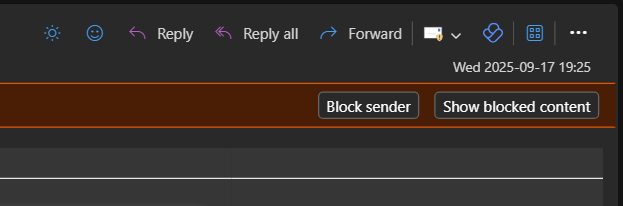
Samples from Outlook desktop

Step 1: Install ExchangeOnlineManagement
This requires PowerShell started as Administrator. A well-configured computer
(anti-malware/EDR) will not allow you to modify
%userprofile%\Documents\WindowsPowerShell. If nothing happens, verify that you are temporarily
allowed to do this.
Install-Module -Name ExchangeOnlineManagement -ForceStep 2: Connect to Exchange Online with PowerShell
Connect-ExchangeOnline -UserPrincipalName yourusername@example.comStep 3: Check the current status
Identity below is an example value.
Get-ExternalInOutlook

Identity                             Enabled AllowList
--------                             ------- ---------
1111111a-aaa1-222b-3333-444444444444   False {}
Step 4: Enable or disable the external in/out tags
# Enable
Set-ExternalInOutlook -Enabled $true

# Disable
Set-ExternalInOutlook -Enabled $false
Tip: if you don’t like it, turn it off again.
Step 5: Add or remove addresses in the AllowList (optional)
Use Get-ExternalInOutlook to check the current status.
Important: 🛡 avoid using the AllowList unless there is a strong business need — it weakens protection against impersonation.
# Add
Set-ExternalInOutlook -AllowList @{Add="example.com"}

# Remove
Set-ExternalInOutlook -AllowList @{Remove="example.com"}
FAQ
- Does this block external emails?
- No, it only highlights them for awareness.
- Can I exclude trusted partners?
- Yes, via the AllowList — but we recommend doing this only when absolutely necessary.
- Will this work on mobile?
- Yes, the external tag is supported in Outlook mobile apps.
- Will this confuse employees?
- No. The indicator is subtle but clear. It works as a simple reminder, reinforcing training without disrupting daily work.
Final thoughts
Recommendation: enable External Email Tags as the preferred method for distinguishing external messages. It offers stronger security, a cleaner experience, and aligns with Microsoft’s modern email security strategy. Also enable Defender Safety Tips and MailTips, and align with your awareness team for end-user training.
Want a full review of your email security posture?
We audit gateways, routing and authentication frameworks end to end.
Book an assessment