Direct Send domain: yourtenant.onmicrosoft.com
Last updated
When you set up Exchange Online and add your company domain, you also get a tenant
default domain. In my case the tenant is “nansec”, which means I get the domain
nansec.onmicrosoft.com configured for email by default. That is fine, as long as you remember
to always include it in every custom rule you configure under “Policies and Rules” in the Defender “Email
& collaboration” section.
However, if you use another vendor or an external email gateway in front of your
Exchange Online environment, this can create a security problem: the MX record for that domain points to
yourtenant.mail.protection.outlook.com by default.
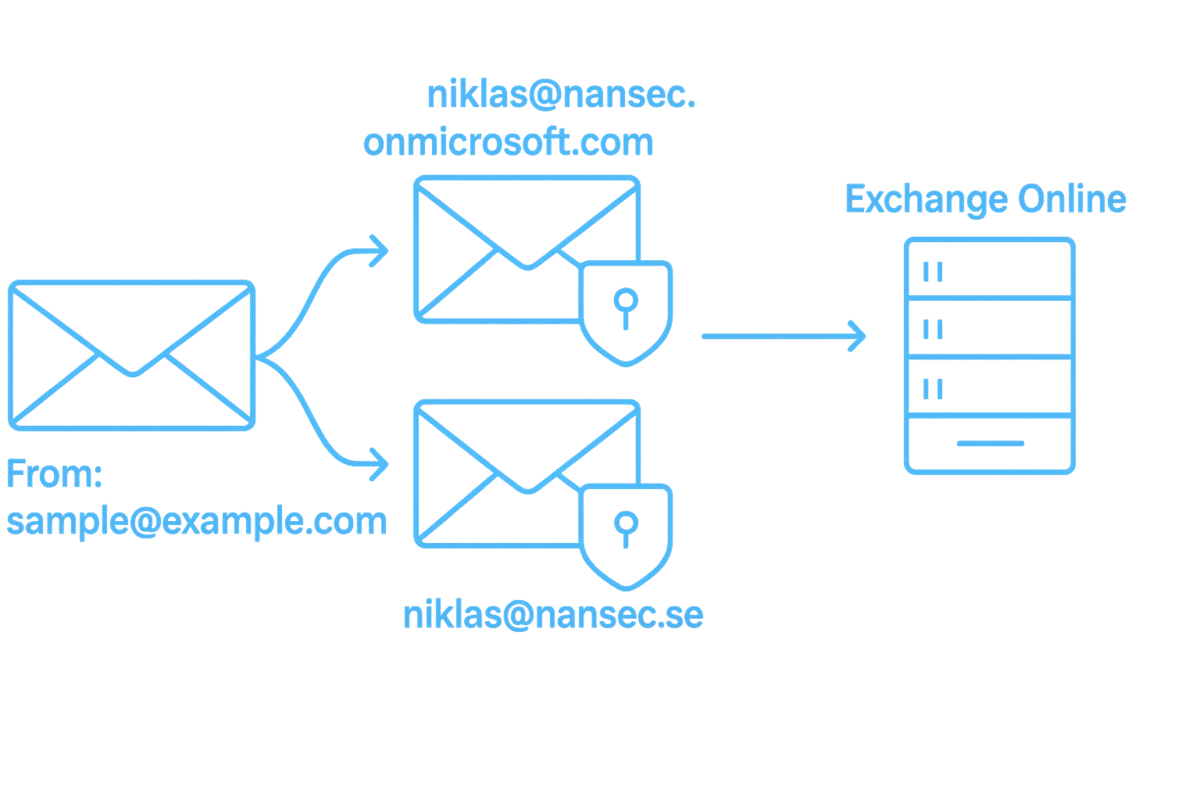
Any configuration done in the external email gateway will not apply to this domain.
Why turn Direct Send off?
- 🛡 Improved security – easier to configure a consistent email security policy for your organization.
- ❌ Reduced risk – the same security filtering applies to all external messages.
Note: if you do not have an external email gateway or your own domain, this may not be relevant for you.

Set Direct Send, and sending email for this default domain, to off.
Step 1: Install ExchangeOnlineManagement
This requires PowerShell started as Administrator. A well-configured computer
(anti-malware/EDR) will not allow you to modify
%userprofile%\Documents\WindowsPowerShell. If nothing happens, verify that you are temporarily
allowed to do this.
Install-Module -Name ExchangeOnlineManagement -ForceStep 2: Connect to Exchange Online with PowerShell
Connect-ExchangeOnline -UserPrincipalName yourusername@example.comStep 3: Check the current status of Direct Send
In my tenant this is now disabled, so RejectDirectSend shows as
True.
Get-OrganizationConfig | Select-Object Identity, RejectDirectSend

Identity               RejectDirectSend
--------               ----------------
nansec.onmicrosoft.com             True
Step 4: Block or allow the Direct Send feature
Use the commands below to control Direct Send for the
.onmicrosoft.com domain.
# Disable Direct Send
Set-OrganizationConfig -RejectDirectSend $true

# Enable Direct Send
Set-OrganizationConfig -RejectDirectSend $false
Step 5: Also disable “Allow mail to be sent from this domain”
In my case I set this to disabled as well. See the output below.
Get-AcceptedDomain | Select-Object Name, DomainName, SendingFromDomainDisabled

Name                   DomainName             SendingFromDomainDisabled
----                   ----------             -------------------------
nansec.onmicrosoft.com nansec.onmicrosoft.com                      True
nansec.se              nansec.se                                  False
Tip: if you don’t like it, turn it off again — both settings are reversible.
Step 6: Block or allow email sent from the tenant domain
Use the commands below to control sending from
yourtenant.onmicrosoft.com.
# Disable email sending from the domain
Set-AcceptedDomain -Identity "yourtenant.onmicrosoft.com" -SendingFromDomainDisabled $true

# Enable email sending from the domain
Set-AcceptedDomain -Identity "yourtenant.onmicrosoft.com" -SendingFromDomainDisabled $false
Final thoughts
Recommendation: if you do not need or use your .onmicrosoft.com
domain, turn off sending and receiving of external email for it. If you use another provider or any type of
external email gateway, this domain may currently bypass the email security settings you have in place for
your company.
Want a full review of your email security posture?
We audit gateways, routing and authentication frameworks end to end.
Book an assessment